
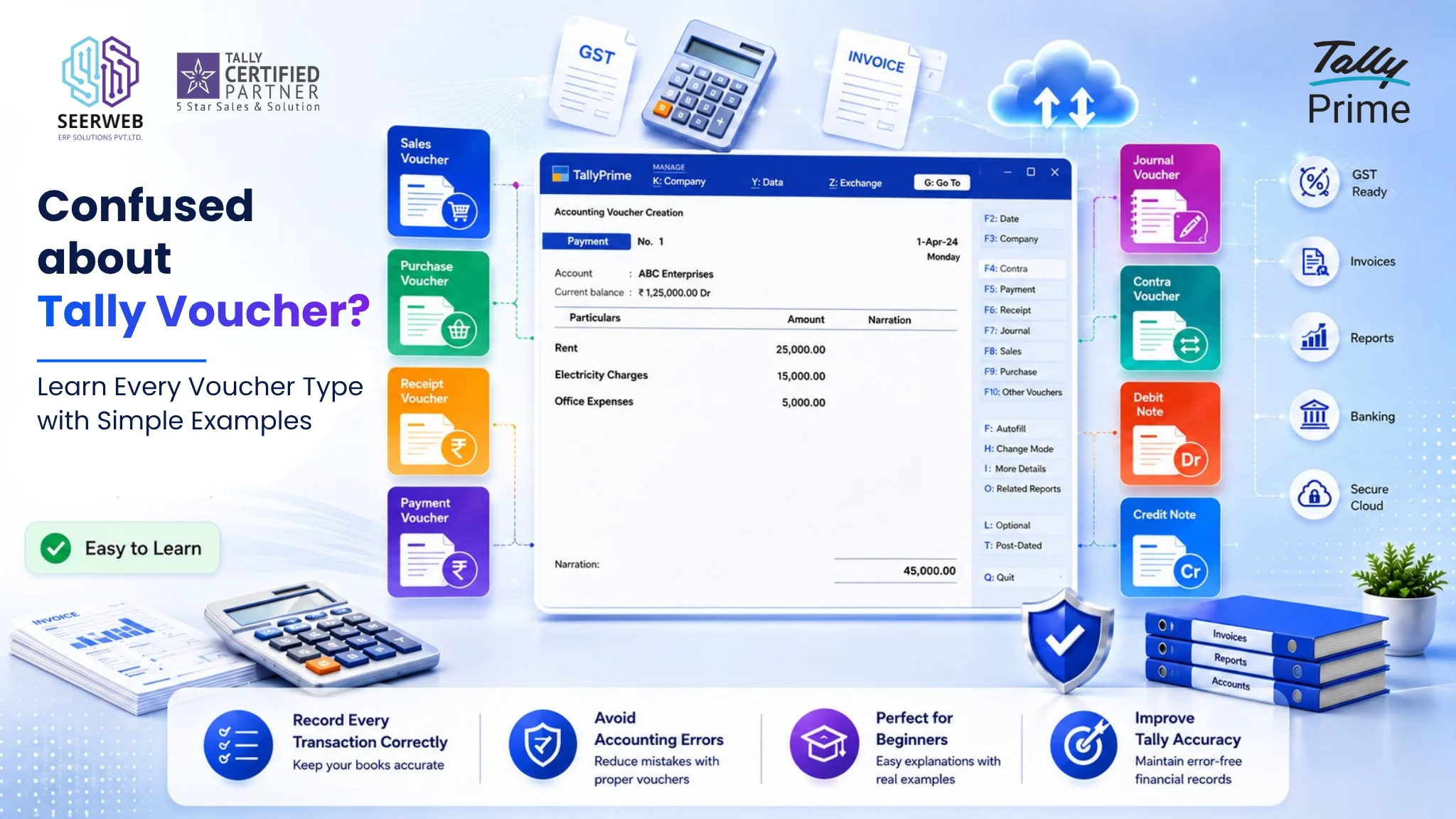
Every entry you make in Tally Prime — a sale, a purchase, a payment, a bank transfer — starts with one thing: a voucher. Vouchers are the building blocks of your books; get them right and your accounts stay clean, get them wrong and reconciliation turns into a headache. In this guide, you’ll learn what a voucher is, how to access voucher entry in Tally Prime, and a complete breakdown of every voucher type with its shortcut key and a real business example. Whether you’re a commerce student, a newly hired accountant, or a small business owner managing your own books, this guide will give you a solid foundation to work confidently in Tally Prime.
What is a Voucher in Tally?
A voucher is simply a document used to record a financial transaction in Tally. Think of it as the digital equivalent of a paper slip — a sales invoice, a payment receipt, a bank transfer note — that captures the date, amount, parties involved, and nature of a transaction.
Vouchers matter because every single transaction in Tally, without exception, is recorded through one. Whether you’re billing a customer, paying a supplier, or transferring cash to the bank, you’ll always start from a voucher screen. Choosing the correct voucher type keeps your ledgers accurate, your GST filings consistent, and your financial reports trustworthy.
How to Access Vouchers in Tally Prime
To reach voucher entry, go to Gateway of Tally → Vouchers. From here, Tally Prime displays a voucher entry screen where you can select the type of transaction you want to record using function key shortcuts (F4 through F10, and combinations like Ctrl+F8).
Types of Vouchers in Tally Prime
1. Sales Voucher (F8)
Used to record the sale of goods or services to a customer. This is the most frequently used voucher for any trading or service business. Example: Selling 10 units of a product to a customer on credit. (Screenshot placeholder: Sales voucher entry) Sales vouchers directly feed your GST returns, so accuracy here matters — see our guide on how to file GST returns in TallyPrime for the full filing workflow.
2. Purchase Voucher (F9)
Used to record goods or services bought from a supplier. Example: Recording a raw material purchase from a vendor. (Screenshot placeholder: Purchase voucher entry)
3. Payment Voucher (F5)
Used when your business pays out money — to a supplier, for expenses, or for TDS/statutory dues. Example: Paying office rent via bank transfer. (Screenshot placeholder: Payment voucher entry) If you’re handling TDS payments alongside regular vouchers, check out automated TDS with TallyPrime 5.0 to see how deductions can be automated.
4. Receipt Voucher (F6)
Used to record money received — from customers, refunds, or any other income. Example: Receiving payment from a customer against an outstanding invoice. (Screenshot placeholder: Receipt voucher entry)
5. Contra Voucher (F4)
Used exclusively for fund transfers between cash and bank accounts (or between two bank accounts). Example: Depositing cash into the company’s bank account. (Screenshot placeholder: Contra voucher entry)
6. Journal Voucher (F7)
Used for non-cash adjustment entries such as depreciation, provisions, or rectifications. Example: Passing a depreciation entry at month-end. (Screenshot placeholder: Journal voucher entry)
7. Debit Note (Ctrl+F9)
Used to record purchase returns or a reduction in amount payable to a supplier. Example: Returning defective goods to a vendor. (Screenshot placeholder: Debit note entry)
8. Credit Note (Ctrl+F8)
Used to record sales returns or a reduction in amount receivable from a customer. Example: Issuing a credit note for goods returned by a customer. (Screenshot placeholder: Credit note entry)
9. Stock Journal (Alt+F7)
Used to record the transfer of stock between locations or godowns, or for manufacturing/assembly entries. Example: Moving finished goods from the factory godown to the sales warehouse. (Screenshot placeholder: Stock journal entry)
10. Physical Stock Voucher
Used to record actual stock counted during a physical verification, to reconcile with book stock. Example: Adjusting book stock after a physical inventory count reveals a shortage. (Screenshot placeholder: Physical stock voucher entry)
Bonus: Tally Prime also offers Memo and Optional vouchers for provisional or non-accounting entries that you may want to record for reference without affecting your books immediately.
Accounting Vouchers vs Inventory Vouchers
| Category | Purpose | Examples |
|---|---|---|
| Accounting Vouchers | Record financial transactions affecting ledgers | Sales, Purchase, Payment, Receipt, Contra, Journal, Debit Note, Credit Note |
| Inventory Vouchers | Record stock movement without necessarily affecting accounting ledgers | Stock Journal, Physical Stock, Delivery Note, Receipt Note |
Accounting vouchers impact your financial statements directly, while inventory vouchers primarily track the movement and quantity of goods. Some vouchers, like Sales and Purchase, actually straddle both categories since they affect ledgers and stock simultaneously.
How to Create a Custom Voucher Type
If your business needs a specialised voucher — say, a dedicated “Cash Sales” voucher separate from regular credit sales — Tally Prime lets you create one:
- Go to Gateway of Tally → Create → Voucher Type
- Enter a name (e.g., “Cash Sales”)
- Select the base voucher type it should inherit from (e.g., Sales)
- Configure numbering, printing, and class settings as needed
- Save
This is especially useful for businesses that want automatic ledger allocation (like always posting to a “Cash” account) through voucher classes, reducing manual entry errors on repetitive transactions.
Common Mistakes Beginners Make with Vouchers
- Wrong voucher selection: Using a Journal voucher for a cash transaction instead of Payment/Receipt, which distorts cash-flow reports.
- Missing narration/reference numbers: Skipping narrations makes it hard to trace or reconcile entries later — this becomes especially painful during GST reconciliation in Tally.
- Not using voucher classes: Manually allocating ledgers for every repetitive entry instead of setting up a class, which wastes time and invites errors.
Quick Reference Table
| Voucher Type | Shortcut Key | Purpose |
|---|---|---|
| Sales | F8 | Record sales |
| Purchase | F9 | Record purchases |
| Payment | F5 | Record payments |
| Receipt | F6 | Record receipts |
| Contra | F4 | Bank/cash transfers |
| Journal | F7 | Adjustment entries |
| Debit Note | Ctrl+F9 | Purchase returns |
| Credit Note | Ctrl+F8 | Sales returns |
| Stock Journal | Alt+F7 | Stock transfer/manufacturing |
| Physical Stock | — | Stock reconciliation |
Conclusion
Mastering vouchers is the first real step toward confident, error-free bookkeeping in Tally Prime — every report, return, and reconciliation you’ll ever run traces back to how accurately these entries were made. Once you’re comfortable with voucher entry, the natural next step is learning how to file GST returns in TallyPrime using the data you’ve recorded.