
Digitally signing invoices is no longer just a convenience—it has become a necessity. With increasing compliance requirements, GST regulations, and remote business operations, companies need a reliable way to authenticate invoices without printing, signing, and scanning documents repeatedly.
This is where digital signature in Tally Prime plays a vital role. Tally Prime allows businesses to integrate digital signatures directly into invoices, ensuring security, professionalism, and legal compliance. In this guide, we will walk you through everything you need to know—from understanding digital signatures to enabling and using them effectively in Tally Prime.
What is a Digital Signature in Tally Prime?
A digital signature is an encrypted electronic signature that verifies the authenticity of a document and the identity of the signer. In Tally Prime, digital signatures are used to sign invoices, reports, and other accounting documents before sharing them with customers or authorities.
Overview of Digital Signature Certificates (DSC)
A Digital Signature Certificate (DSC) is issued by a licensed Certifying Authority (CA). It contains details such as the holder’s name, email address, issuing authority, and validity period. When applied to an invoice, it ensures that the document has not been altered after signing.
Supported Certificate Types
Tally Prime supports:
- Class 2 DSC – Commonly used for filing GST returns and basic authentication
- Class 3 DSC – Required for higher-level security and e-tendering
- USB Token-based DSC – Hardware tokens that securely store the certificate
Benefits of Integrating Digital Signature with Tally Prime
- Eliminates manual signing and paperwork
- Improves document authenticity and trust
- Enables faster invoice sharing
- Ensures legal compliance with statutory requirements
Requirements for Using Digital Signature in Tally Prime
Before enabling digital signatures in Tally Prime, ensure the following requirements are met:
1. Valid Digital Signature Certificate (DSC)
You must have an active and valid DSC issued in your or your organization’s name. Expired or revoked certificates will not work.
2. USB Token Drivers Installed
If your DSC is stored in a USB token, the corresponding drivers must be installed correctly on your system. Without these drivers, Tally Prime will not detect the certificate.
3. Admin Access in Tally Prime
Only users with administrator or owner rights can enable and configure digital signature features in Tally Prime.
4. Updated Tally Prime Version
Always use the latest version of Tally Prime to avoid compatibility issues and to ensure support for digital signature functionality.
How to Add Digital Signature to Invoices or Reports?
Let us consider exporting an invoice or report in PDF format with digital signature. In case of E-mail and WhatsApp, all the steps for adding digital signature to invoices and reports remains the same. In case of printing, you can set up the print configuration for digital signature at the application level or for each invoice or report.
- Open any invoice and report and press Ctrl+E (Current).
- Under Export Settings > File Format, select PDF.
(If you are printing the document, you can set the Printer as Microsoft Print to PDF at this stage. The rest of the steps remain the same.) - Under Digital Signature, configure the necessary options.
- Select the required digital signature from the list.
- Set Ask before signing to Yes, if needed.
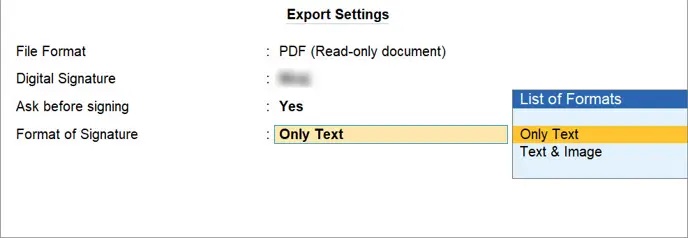
3. Configure the Format of Signature.
-
-
- Choose Only Text or Text & Image as the signature.
- For Text & Image, select the Image Path and Image File Name to add.
- Set the option Include name of Signatory to Yes or No as needed.
-

4. Set any other export configurations – such as Export to location, File Name and so on – for the invoice or report and save.
5. Press E (Export). If you had set Ask before signing to Yes, TallyPrime prompts for confirmation. Select Yes to confirm.
6.When prompted, enter the User PIN provided by the Certifying Authority, and click OK.

This is a one-time activity required to authenticate the digital signature certificate.
The invoice gets exported in PDF format with the digital signature.
How to Digitally Sign Invoices in Tally Prime?
After configuration, digitally signing invoices becomes a simple routine task.
1. Steps to Sign a Sales Invoice
- Create a Sales Invoice as usual in Tally Prime.
- Ensure all invoice details are correct before signing.
- Press Print or Export to PDF.
2. Selecting Signature Option Before Printing
While printing or exporting the invoice, select the option to Apply Digital Signature.
3. Preview and Apply Signature
Tally Prime allows you to preview the invoice before finalizing. Once confirmed, the system will prompt for the DSC authentication.
4. Saving and Exporting Digitally Signed PDF
After successful authentication, the invoice is saved as a digitally signed PDF, which can be emailed or shared securely.
How to Verify a Digitally Signed Invoice
Clients or authorities receiving your invoice can easily verify its authenticity.
How Clients Verify Your Signature
- Open the PDF in any standard PDF reader (such as Adobe Acrobat).
- Click on the digital signature panel.
Signature Properties in PDF
The signature details show:
- Signer’s name
- Certificate issuer
- Date and time of signing
Trust and Certificate Validation
If the certificate is valid and trusted, the document will show a verified or trusted signature status, confirming authenticity.
Common Issues & Solutions
Despite correct setup, users may face occasional issues.
DSC Not Detected
- Ensure USB token is properly connected
- Reinstall token drivers
- Restart the system
Signature Option Not Appearing
- Check if digital signature is enabled in F11 features
- Verify user permissions
Token Driver Issues
- Use drivers provided by the token manufacturer
- Avoid using outdated drivers
Expired Certificate Problems
- Renew the DSC before expiry
- Update the renewed certificate in Tally Prime
Security Best Practices for Digital Signature in Tally Prime
Maintaining security is critical when using digital signatures.
1. Keeping the DSC Safe
Always store the USB token securely and remove it when not in use.
2. Avoiding Password Sharing
Never share your token password with unauthorized users. Assign individual responsibilities within the organization.
3. Renewing DSC on Time
Track certificate expiry dates and renew them in advance to avoid workflow interruptions.
Benefits of Digitally Signing Invoices in Tally Prime
Digitally signing invoices offers several business advantages:
- Legal Compliance – Digital signatures comply with IT Act regulations and are accepted by tax authorities.
- Faster Approvals – Invoices can be sent instantly without delays caused by manual signing.
- Professional Document Appearance – Digitally signed invoices enhance your company’s credibility and professionalism.
- Security and Authenticity – Ensures invoices are tamper-proof and protects against fraud.
Conclusion
Digital signatures have transformed the way businesses handle invoicing and documentation. With digital signature in Tally Prime, organizations can simplify workflows, enhance security, and ensure legal compliance—all within their existing accounting system.
By enabling and using digital signatures correctly, businesses save time, reduce errors, and project a modern, trustworthy image. As digital transactions continue to grow, adopting digitally signed invoices is no longer optional—it is a strategic necessity for forward-thinking businesses.
Frequently Asked Questions (FAQs)
Q1. Is digital signature mandatory in Tally Prime?
No, it is optional, but highly recommended for compliance, security, and professional documentation.
Q2. Can I use one DSC for multiple companies in Tally Prime?
Yes, provided the certificate holder is authorized for those companies.
Q3. Does digital signature work with GST invoices in Tally Prime?
Yes, digitally signed GST invoices are legally valid and widely accepted.
Q4. Can clients verify the signature without Tally?
Yes, any standard PDF reader can verify a digitally signed invoice.
Q5. What happens if my DSC expires?
You must renew the certificate and reconfigure it in Tally Prime to continue signing invoices.